
This article describes the formula syntax and usage of the HEX2DEC function in Microsoft Excel.
Description
Converts a hexadecimal number to decimal.
Syntax
The HEX2DEC function syntax has the following arguments:
Number Required. The hexadecimal number you want to convert. Number cannot contain more than 10 characters (40 bits). The most significant bit of number is the sign bit. The remaining 39 bits are magnitude bits. Negative numbers are represented using two’s-complement notation.
Remark
If number is not a valid hexadecimal number, HEX2DEC returns the #NUM! error value.
Example
Copy the example data in the following table, and paste it in cell A1 of a new Excel worksheet. For formulas to show results, select them, press F2, and then press Enter. If you need to, you can adjust the column widths to see all the data.
Function Description
The Excel Hex2Dec function converts a hexadecimal (a base-16 number) into a decimal number.
The syntax of the function is:
Where the number argument is the hexadecimal number that is to be converted to a decimal.
Note that the supplied number argument must not be more than 10 characters (40 bits) long. The most significant bit of this value denotes the sign of the number and the remaining 39 bits denote the magnitude. Negative numbers are represented using two’s complement notation.
It should also be noted that, as hexadecimals use the numbers 0-9 and the characters a-f, they should be enclosed in quotation marks when they are supplied to an Excel function. (e.g. The hexadecimal 11a should be input as «11a»).
The Hexadecimal (Base 16) Numeral System uses the digits 0-9 and the characters a-f.
The following table shows the first 32 hexadecimal values, along with the equivalent decimal values:
| Hexadecimal | 1 | 2 | 3 | 4 | 5 | 6 | 7 | 8 | 9 | a | b | c | d | e | f | 10 | 11 | 12 | 13 | 14 | 15 | 16 | 17 | 18 | 19 | 1a | 1b | 1c | 1d | 1e | 1f | 20 |
| Decimal | 1 | 2 | 3 | 4 | 5 | 6 | 7 | 8 | 9 | 10 | 11 | 12 | 13 | 14 | 15 | 16 | 17 | 18 | 19 | 20 | 21 | 22 | 23 | 24 | 25 | 26 | 27 | 28 | 29 | 30 | 31 | 32 |
For further information on the hexadecimal numeral system, see the Wikipedia Hexadecimal Page
Hex2Dec Function Examples
The following spreadsheets show five examples of the Excel Hex2Dec function.
| A | |
|---|---|
| 1 | =HEX2DEC( «A» ) |
| 2 | =HEX2DEC( «1F» ) |
| 3 | =HEX2DEC( «0000000010» ) |
| 4 | =HEX2DEC( «FFFFFFFFF0» ) |
| 5 | =HEX2DEC( «111» ) |
| A | B | |
|---|---|---|
| 1 | 10 | |
| 2 | 31 | Result is 1*16 + 15 |
| 3 | 16 | Result is 1*16 + 0 |
| 4 | -16 | Result is -16^9 + 15*16^8 + 15*16^7 + . + 15*16 + 0 |
| 5 | 273 | Result is 1*16^2 + 1*16 + 1 |
Note that, in the above example spreadsheet, the negative hexidecimal in cell A4 uses two’s complement notation.
Further details and examples of the Excel Hex2Dec function are provided on the Microsoft Office website.
Hex2Dec Function Error
If you get an error from the Excel Hex2Dec function this is likely to be the #NUM! error:
Microsoft Excel offers some very effective functions to work with numbers. One such function is the HEX2DEC function. The HEX2DEC function converts a hexadecimal number to its decimal counterpart. In this tutorial, we will learn how to use the HEX2DEC function in Excel.
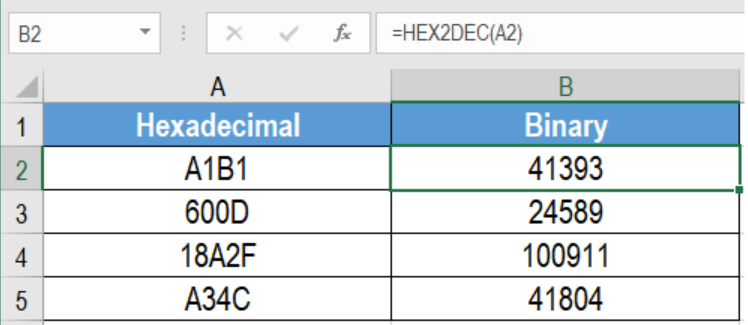 Figure 1. Example of How to Use the HEX2DEC Function in Excel
Syntax for HEX2DEC function
Number
Required. This is the hexadecimal number that is converted to a decimal number.
Setting up Data
The following example data set consisting of hexadecimal numbers. The numbers are in column A. We will be converting these numbers to their decimal equivalents. The results will be in column B.
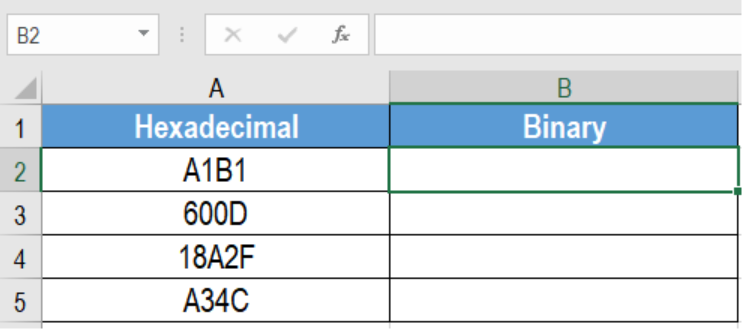 Figure 2. Setting up Data to Use the HEX2DEC Function in Excel
In order to d o that:
- We need to click cell B2 with the mouse.
- Assign the formula =HEX2DEX(A2) to the formula bar of cell B2.
- Press Enter .
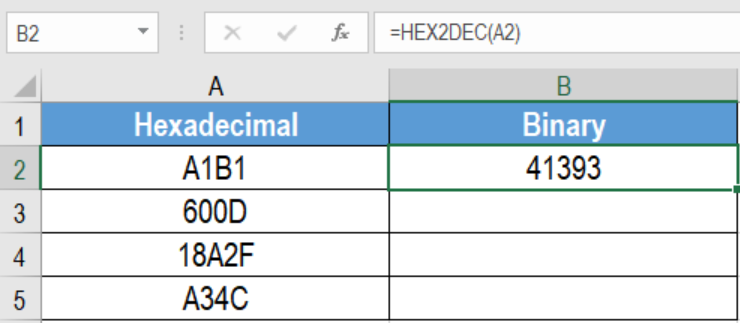 Figure 3. Applying the HEX2DEC Function in Excel
- Drag the fill handle from cell B2 from B2 to B5.
This will convert the hexadecimal numbers in column A to decimal numbers in column B.
Notes
- The number argument can have up to 10 characters ( 40 bits ). The sign bit is the most significant bit of the number. The other 39 bits are used as magnitude bits. Excel represents negative numbers using two’s-complement notation.
- The HEX2DEC function returns a #NUM! error if the number is not a hexadecimal number.
- The function returns a #NUM! error if the number resembles >=3^23 .
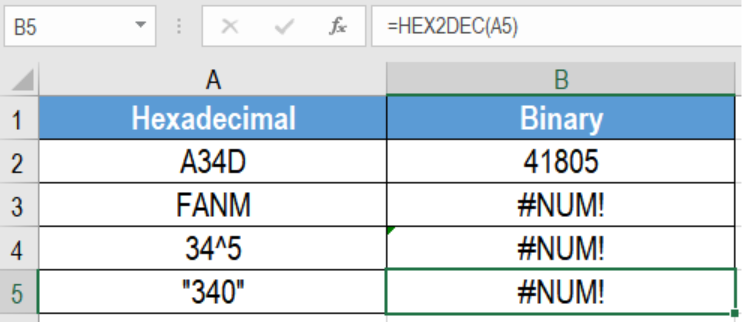 Figure 4. Example of Common Errors with the HEX2DEC Function in Excel
Most of the time, the problem you will need to solve will be more complex than a simple application of a formula or function. If you want to save hours of research and frustration, try our live Excelchat service! Our Excel Experts are available 24/7 to answer any Excel question you may have. We guarantee a connection within 30 seconds and a customized solution within 20 minutes.