
В этой статье я расскажу об одном из вариантов настройки сервера удаленного доступа IPSec VPN на базе OpenSwan. Для клиентского подключения будут использоваться GreenBow VPN Client и Shrew VPN. Аутентификация с использованием Preshared Key.
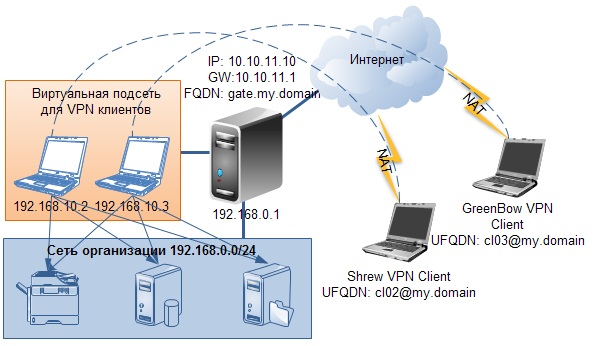
Итак у нас имеется сервер с CentOS 5.5 один из интерфейсов смотрит в интернет и имеет внешний IP 10.10.11.10 и шлюз 10.10.11.1 (адреса IP и шлюза взяты исключительно для данного примера и не имеют отношения к внешним адресам), другой интерфейс имеет IP 192.168.0.1 и является шлюзом для корпоративной подсети 192.168.0.0/24. Виртуальная подсеть для VPN клиентов 192.168.10.0/24 – ее использование в данном случае упрощает ограничение доступа для удаленных пользователей к ресурсам организации. Ну и пара клиентских компьютеров как показано на рисунке ниже.
1. Установка OpenSwan
OpenSwan есть в стандартном репозитории CentOS, однако версия 2.6.21 увы не поддерживает множественные подключения с различными ключевыми фразами в агрессивном режиме (здесь по-моему просто теряется смысл использования менее защищенного агрессивного режима). Поэтому берем более новую версию с сайта openswan.org и устанавливаем:
Для нормальной работы скриптов необходимо установить which и lsof:
Открываем файл /etc/sysctl.conf и меняем значение net.ipv4.ip_forward c 0 на 1, тем самым разрешая форвардинг пакетов и дописываем две строчки запрещающие ICMP send redirects и ICMP accept redirects:
Применяем сделанные изменения
2. Настройка подключений
На данном этапе я не буду углубляться в упрощение описания за счет использования директив also и %default или расположения описаний подключений в отдельных файлах – по моему главное сделать максимально простой и работоспособный пример.
Открываем файл /etc/ipsec.conf и приводим его к следующему виду.
Открываем файл /etc/ipsec.secrets
Добавляем в iptables
Добавляем сервис ipsec в автозапуск и запускаем
3. Настройка VPN клиентов
Описание настройки VPN клиентов напишу немножко позже, и думаю лучше всего будет перенести это описание в отдельную статью. На сегодняшний день из более-менее живых и стабильных клиентов я вижу всего два:
1. GreenBow VPN Client (ZyWALL VPN Client) – очень удобная штука, правда платная стоит приближенно 50$.
2. Shrew VPN – бесплатный, имеет огромное количество настроек, в которых иногда бывает трудно найти то что нужно.
Если кто-то использует альтернативные варианты подключения – с удовольствием рассмотрю их.
11 Коммент. : “OpenSwan как сервер удаленного доступа”
Search This Blog
Friday, October 21, 2016
ShrewSoft VPN failed to attach to key daemon error
If you are using ShrewSoft VPN client and suddenly it does not connect with error «failed to attach to key daemon», then most likely one or all of the ShrewSoft services are not working.
Start theses services to solve the issue:
- ShrewSoft DNS Proxy Daemon
- ShrewSoft IKE Daemon
- ShrewSoft IPSEC Daemon
11 comments:

Please let me know if you’re looking for a article writer for your site. You have some really great posts and I feel I would be a good asset. If you ever want to take some of the load off, I’d absolutely love to write some material for your blog in exchange for a link back to mine. Please send me an email if interested. Thank you!
how do you «Start services» ?
Start — Run — Services.msc — find service — right-click — Start
I have the Shrew Soft VPN Access Manager program, and I do not know where that «Start» is, can you tell?
Hi Irene,
the «start» is the «start menu» on your desktop (the bottom left button on windows), here you can find a command named «run», select it and follow the instructions of the admin.
So you go to the start menu, you find «run» and write «services.msc». A window will appear and you can search for «Shrewsoft . » and start them with right-click + start.
I hope that I’m clear !
This helped me — needed a more step by step guide. Thanks!
I’m trying to use Shrew Soft to connect to my school VPN. But as you can see here, it says
failed to connect to key daemon
I searched for the solution and people who use Shrew Soft Trace Utility and easily solved this on Windows OS as seen here.
Yet, I don’t know how to solve this on Ubuntu 14.04.
Also, is there a substitute application for Shrew Soft VPN for Ubuntu? Thanks!

3 Answers 3
You can always check it if it’s running by using the following command:
if you get a result, it means the process is running
if not run the below command:
it starts service
I had the same problem. I found out that iked service was not running. I solved it by opening a terminal emulator and issued the command:
I later found out that the Shrew installation on Ubuntu does not add this script to start up at all (shame on the guys and girls from Shrew ;-)). To do this yourself do the following:
In a terminal issue the command:
Type your root password and add the following line just before the last line (which normally says exit 0)
Save and close it.
Next time you restart your computer the service will be active and the error should never bother you again.