
На данный момент для работы с MySQL имеется несколько провайдеров, но в данном случае мы будем использовать провайдер Pomelo.EntityFrameworkCore.MySql от Pomelo Foundation Project. Стоит отметить, что на данный момент (27 октября 2019) для версии EF Core он пока в предрелизном состоянии, поэтому мы будем использовать пререлизную версию.
Для подключения к MySQL создадим новый консольный проект .NET Core и добавим через Nuget пакет Pomelo.EntityFrameworkCore.MySql :
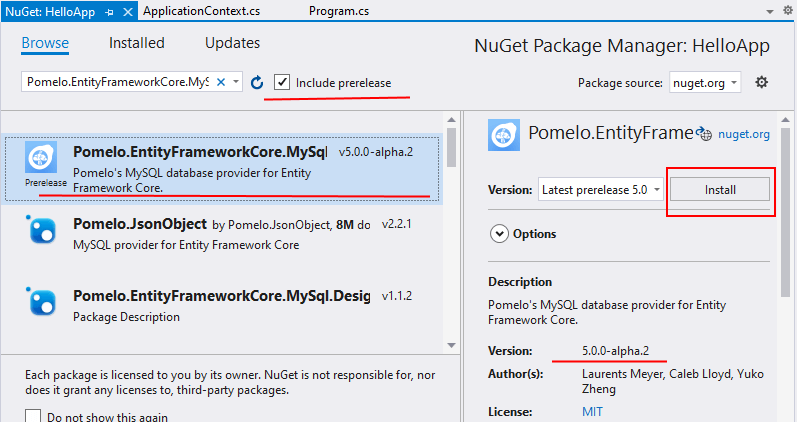
Стоит отметить, что также есть официальный провайдер от Oracle — MySql.Data.EntityFrameworkCore , но он развивается довольно медленно (на данный момент не поддерживает EF Core 3.x), кроме того, не имеет поддержки ряда функционала.
Для работы определим модель User:
И также определим контекст данных — класс ApplicationContext:
Для работы с MySQL вызывается метод UseMySql() , в который передается строка подключения. В строке подключения указываются адрес сервера (параметр server), имя пользователя в субд (UserId), его пароль (Password) и имя базы данных (Database).
MySQL ASP.NET Core 2.1
Convert an ASP.NET Core Web Application project to use MySQL with Entity Framework.
This enables development of ASP.NET Core projects using VS Code on Mac OS X / macOS or linux targets.
This project uses .NET Core 2.1 target framework, ASP.NET Core Web Application project scaffold from Visual Studio 2017 (version 15.7.3).
Project setup has already been completed in this repository.
Below, instructions are referenced to use MySQL in a ASP.NET Core project.
Install NuGet packages
Install the MySql.Data.EntityFrameworkCore NuGet package in the ASP.NET web application.
To do this, you can use the dotnet command line by executing:
Or, edit the project’s .csproj file and add the following line in the PackageReference item group:
Configure connection string in project’s appsettings.json, replacing the username , password , and database appropriately:
Add using statements to Startup.cs source code:
Then in the same file’s ConfigureServices() method, replace the UseSqlite option with MySQL:
Migration Issues with DbContext
Upon upgrading MySQL Oracle Connector, entity framework migrations were failing with the error:
MySql.Data.MySqlClient.MySqlException (0x80004005): Specified key was too long; max key length is 3072 bytes
To resolve this, add the following code within the ApplicationDbContext.cs OnModelCreating() .
Then, generate a new migration using Visual Studio Package Manager Console (from menu: Tools -> NuGet Package Manager -> Package Manager Console):
Or, from the command line via DotNet CLI:
Running the solution
Before the solution can be executed, be sure to run entity framework migrations.
Create Entity Framework Migration Table in MySQL
Running the dotnet ef fails initially as the __efmigrationshistory table doesn’t exist. Until this is resolved by the Entity Framework migration tools, manually create the migrations history table in the MySQL database by executing the following SQL script.
Run Entity Framework Migrations
Execute the migration using either Visual Studio Package Manager Console (from menu: Tools -> NuGet Package Manager -> Package Manager Console):
Or, from the command line via DotNet CLI, execute the following command inside the project directory, where the .csproj file is located:
After running the migration, the database is created and web application is ready to be run.
I have ASP.NET CORE 2 application with MySQL 5.7 and EF Core 2.0 in code-first approach.
I have setup my database in replication for Read and Write. So how can I configure my EF Core for these two connection string for respective operations i.e. Read and Write?
1 Answer 1
It is a good choice to use open source DBMS with .Net core first of all, install these two packages in your project:
You can do it simply from tools->Nuget packageManager -> package manager console
or install them to your solution(Manage NuGet packages for solution)
After that go to appsettings.json and add the connection string as follow:
Next, add your Context class and go to your startup.cs class for configuring mysql in DI in the ConfigureServices method add the following code
After following all these steps, add migrations and update your database. I hope it works well for you.