
Персональный блог об информационных технологиях

Что делать с файлом winmail.dat
29.11.2007
 По электронной почте пришло сообщение с непонятным вложенным файлом winmail.dat, который я не смог открыть стандартными средствами, и, как это обычно бывает, там был необходимый мне сейчас документ. Нашёл статью на сайте Microsoft по этому поводу. Наличие вложенного файла winmail.dat говорит о том, что пользователь отправил вам письмо используя TNEF-формат (Transport Neutral Encapsulation Format), содержащий инструкции сложного форматирования текста, специальные средства Outlook, а также вложения. Как правило, этот метод отправки писем используют клиенты Outlook (из пакета Microsoft Office) и программное обеспечение Microsoft Exchange Client. Написал отправителю письмо с просьбой исправить настройки своего почтового клиента и повторить файл. Пока ждал ответ, скачал утилиту fentun для распаковки содержимого файла winmail.dat. Запустил в командной строке «fentun.exe winmail.dat» и получил необходимые мне документы.
7 комментариев на запись “Что делать с файлом winmail.dat”
- Oleg_AT пишет:
11.12.2008 в 13:44
Ситуация анологичная, но
“fentun.exe winmail.dat”
выдает ошибку!
В теле winmail.dat есть это:
А что за ошибка то?
В теле winmail.dat есть это:
meta name=Generator content=»Microsoft Word 11 (filtered medium)»
а то что-то в теле ком-ия невижу.
Вопервых, имена вложений определяются как «левые», типа
цифры и пецсимволы.
Во вторых, как следствие, в строке состояния пишет
«Error».
P.S. в теле есть
IPM.Microsoft Mail.Note
и немного ниже
META HTTP-EQUIV=»Content-Type» CONTENT=»text/html; charset=windows-1251″
Сложно сказать, возможно эта версия Word просто не поддерживается. Тогда можно только попросить отправить в нормальном виде.
Решил в bin редакторе ручками.
Огромное спасибо автору, хотя и запоздалое.
Скачал, с командной строки запустил — не вышло, тогда мышой перетащил злополучный файл на fentun и о чудо!
Creating and working in shared notebooks is the best way to collaborate with others. However, if you don’t want other people to have permission to see your whole OneNote notebook, you can send notes in email.
Send a page of notes in Outlook
If you use Outlook 2010 or later, you can share a page of notes in a message.
On the OneNote page that has the notes you want to send, choose Home > Email Page.
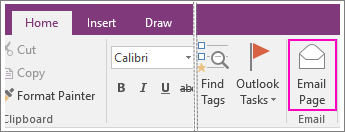
In the message window that opens, fill in the To, Cc, Bcc (if available), and Subject lines.
Add any comments for the recipients of your notes, and then click Send.
Attach notes to an email message
If you don’t have Outlook 2010 or later, you can attach a OneNote note to an email messages.
On the OneNote page that has the notes you want to send, choose File > Export.
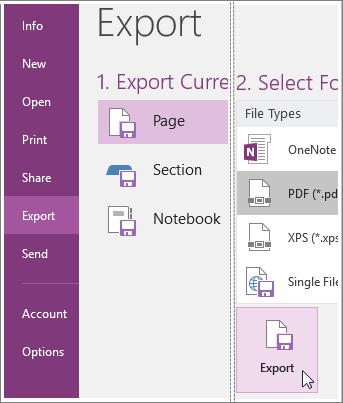
Under Export Current, choose whether you want to create a copy of the current page, the whole section, or the entire notebook.
Under Select Format, choose the type of file you want to create.
Note: If you’re sending notes to another OneNote user, choose one of the OneNote section formats — either OneNote 2007 Section or OneNote 2010-2013 Section. To send notes to someone who doesn’t have OneNote, choose another type of format, such as the PDF (Portable Document Format) option.
Click Export, choose a location for the file (such as your computer’s desktop), and then click Save.
In your preferred email service, create a new message and then attach the file you created.
If you want others to be able to access a notebook (or you want to get to a notebook on other devices), you can create a notebook on OneDrive. If you’ve already created a notebook on your computer, you can choose to move it anytime. You can always change permissions and decide who can read and who can edit, and you can stop sharing at any time.
Send a page of notes in Outlook
If you have Microsoft Office Outlook 2007 installed on your computer, you can send copies of your notes in an email message. The selected notes are copied into the body of the message. A file is also attached to the message and can be viewed in a standard Web browser by recipients who don’t have Office OneNote 2007 installed.
Select the pages that you want to send.
To select more than one page, hold down SHIFT or CTRL while you click the page tabs you want.
To select a page and its subpages, click its page tab, and then double-click one of the pages in the page group.
On the Standard toolbar, click E-mail.
In the new e-mail envelope that opens, type the appropriate information in the To, Cc, Bcc (if available), and Subject boxes.
If you want to include a message that is separate from the page of notes, type your message in the Introduction box.
Click Send a Copy.
To cancel sending notes, click E-mail on the Standard toolbar again.
Office OneNote 2007 does not automatically include linked audio or video recordings when you send pages in e-mail messages. To include linked audio or video recordings, do the following:
On the Tools menu, click Options.
in the Options dialog box, in the Category list, click Sending E-mail.
Under E-mail sent from OneNote, select the Attach a copy of the original notes as a OneNote file check box, and then click Include embedded files such as recordings or documents inside the OneNote package file.
Attach notes to an email message
If you have an e-mail program installed on the same computer on which you are running Microsoft Office OneNote 2007, you can send copies of your notes as an attachment in an email message.
Recipients can view your notes in OneNote or in a standard Web browser.
To send notes in email, do the following:
In OneNote, select the pages that you want to send.
To select more than one page, hold down SHIFT or CTRL while you click the page tabs you want.
To select a page and its subpages, click its page tab, and then double-click one of the pages in the page group.
On the File menu, point to Send to, and then click Mail Recipient (as Attachment).
In the new email message that opens, type the appropriate information in the To, Cc, Bcc (if available), and Subject boxes.
If necessary, customize the message body, and then send the message.
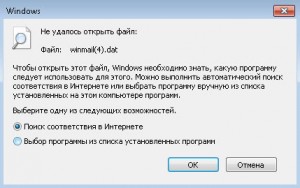 Бывает, что приходит письмо от начальника или из другой организации с непонятным вложением с расширением файла «.dat»… Люди начинают переименовывать файл, пробовать открывать различными архиваторами… но всё в пустую.
На сайте микрософта расписано откуда ноги у этой проблемы, вот только решение какое то топорное «попросите отправить письмо в другом формате» http://support.microsoft.com/kb/278061
Почитали? А теперь приступим…
Существует маленькая бесплатная программка, которая избавляет нас от головной боли и просьб, отправить письма в другом формате или из другой программы.
Забавное «Письмо с очками» 
Интерфейс программы прост до безобразия, русский язык имеется в настройках…
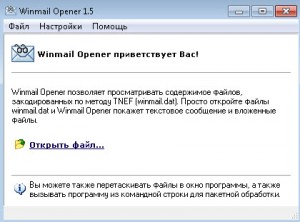
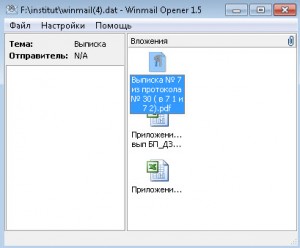
после нажатия на «Открыть файл» и выбора нашего winmail.dat (либо любого другого dat файла) видим уже знакомые глазу иконки вложений!
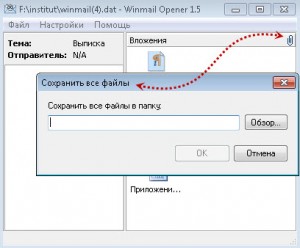
скрепка в правом верхнем углу позволяет сохранить (по сути выгрузить) сразу все файлы вложений.
Вот собственно и всё.
Скачивайте не стесняйтесь : winmail_opener
Ответы на: Открыть вложение winmail.dat? Всё просто!
А есть программа которая 3,14 по башке идиотам которые такие файлики посылает? Готов приобрести!
не встречал
Здравствуйте! Сколько не бился ничего не получается. Работал с двумя прогами:Winmail Reader и Вашей. Скачал outlook думал через него открыть и опять промах. Зашел на сайт https://www.winmaildat.com/ и вот что там выдали:
The file you uploaded does not contain any file. Either the file does not contain any attachment or our tool was not able to extract the contained file(s). As your winmail.dat file is rather small (866 B) it is likely that it does not contain any attachments. Перевод: (Загруженный вами файл не содержит никаких файлов. Либо файл не содержит вложений, либо наш инструмент не смог извлечь содержащиеся в нем файлы. Поскольку ваш файл winmail.dat довольно маленький (866 B), вполне вероятно, что он не содержит вложений.)
Проблему не решил, т.к. открытый файл нужно было еще редактировать. При преобразовании в Ворд тоже нельзя поставить галочки в окошках…
ну так для начала надо перенести файлы на рабочий стол например…. а потом уже и редактировать.
о каком преобразовании идёт разговор вообще не понимаю.
файл с расширением dat в данном случае представляет собой «архив», а программка работает как «архиватор»….
Спасибо, огромное! Очень выручили
Поклон земной и большое человеческое спасибо! Понятно, быстро, просто. (не то что некоторые )
И вам спасибо что зашли и оценили
Спасибо, очень помогла программка. Пришёл ответ от одной недобросовестной конторы, открываю, а там та самая «винмайлдат.» Сколько писем получал за последние несколько лет-это было в первый раз. Если бы не знал от кого -открывать бы не стал. Ну естественно кинулся в сети искать как это открыть- и вот удача.Спасибо.
Спасибо просто огроменнейшее. Вы — гении. Очень помогли)
Спасибо за информацию. Очень полезная статья. Решал проблему на работе у пользователей. перебрал кучу конверторов. Этот самый простой и удобный для обычных пользователей.
народ обленился и стал просто присылать мне на почту файлики winmail.dat , в надежде что я за них всё сделаю 😀
Одна из часто встречающихся проблем при настройке компьютера.