
- Review
- Free Download
- specifications
- Enhance your productivity with the help of this Microsoft Office add-in that integrates speech recognition capabilities so that you can dictate rather than type your >
- Integrates speech recognition features into Microsoft Office
- Features real-time translation capabilities
- Helps you increase your productivity
- Сервис Dictate
- Системные требования
- Заключение
- Видеоинструкция
Review
Free Download
specifications
Enhance your productivity with the help of this Microsoft Office add-in that integrates speech recognition capabilities so that you can dictate rather than type your >
Being well adjusted to your work environment means that, first and foremost, you know how to make the most of the resources that are put at your disposal and that you resort to clever tricks to minimize effort while increasing productivity.
One such tool is Dictate, a Microsoft Office add-in whose purpose is to convert speech to text so that you no longer need to type text and break your workflow.
Integrates speech recognition features into Microsoft Office
As mentioned, the software utility integrates with Microsoft Office, which means that, once you install it, a new tab should appear in Microsoft Word, Outlook, and PowerPoint, letting you effortlessly start turning your ideas into text without even touching the keyboard.
The program relies on speech recognition features to be able to understand what you are saying. It is worth mentioning that support for more than 20 languages is offered, aside from multiple English dialects. That means you should be covered if you speak any of the following languages: Chinese, Hindi, Russian, Korean, French, Italian, Spanish, and more.
Features real-time translation capabilities
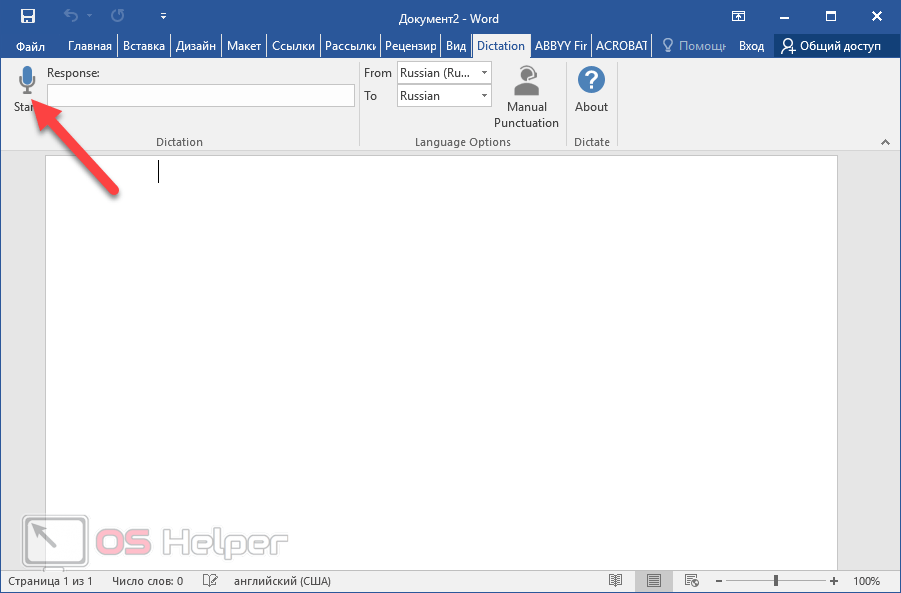
As for how the add-in works, you simply need to plug in your microphone and click the “Start” button in the top-left corner. Once the device is found, you can start dictating whatever crosses your mind, with the mention that the tool is capable of not only turning your spoken words to text but also translate them to any of the aforementioned languages plus many others.
Aside from that, users should know that there are two modes for punctuation. Depending on the accuracy you aim for, you can choose between manual and auto, but this feature is only available for the English language.
What’s more, a series of commands are available for you to use so that your text requires as little editing as possible. We must admit, they are quite intuitive and require little explanation, as shown in the following: “New line,” “Delete,” “Stop dictation,” “Question mark,” “Open Quote,” “Close quote,” “Colon,” and “Comma.”
Helps you increase your productivity
On an ending note, Dictate is a welcome addition to Microsoft Office, which seamlessly introduces speech recognition features to Word, PowerPoint, and Outlook, letting you cut down the times spent typing in emails, notes, and whatnot. The add-in is easy to use and boasts translation capabilities, being a great companion to any user intent on capturing their ideas in text as quickly as possible.
Автор: rf-webmaestro · Опубликовано 27.04.2018 · Обновлено 08.02.2019
Голосовой ввод текста в редакторе Word – очень удобный и продвинутый инструмент. Но о нём знают не многие. Это не удивительно, поскольку технология была запущена относительно недавно: 27 июня 2017 года на официальном сайте Microsoft появилась новость, в которой они сообщили о новой возможности.
Сервис Dictate
По умолчанию эта функция в программе «Ворд» отсутствует и никакие обновления не помогут. Для этой цели нужно использовать сторонний сервис Dictate.
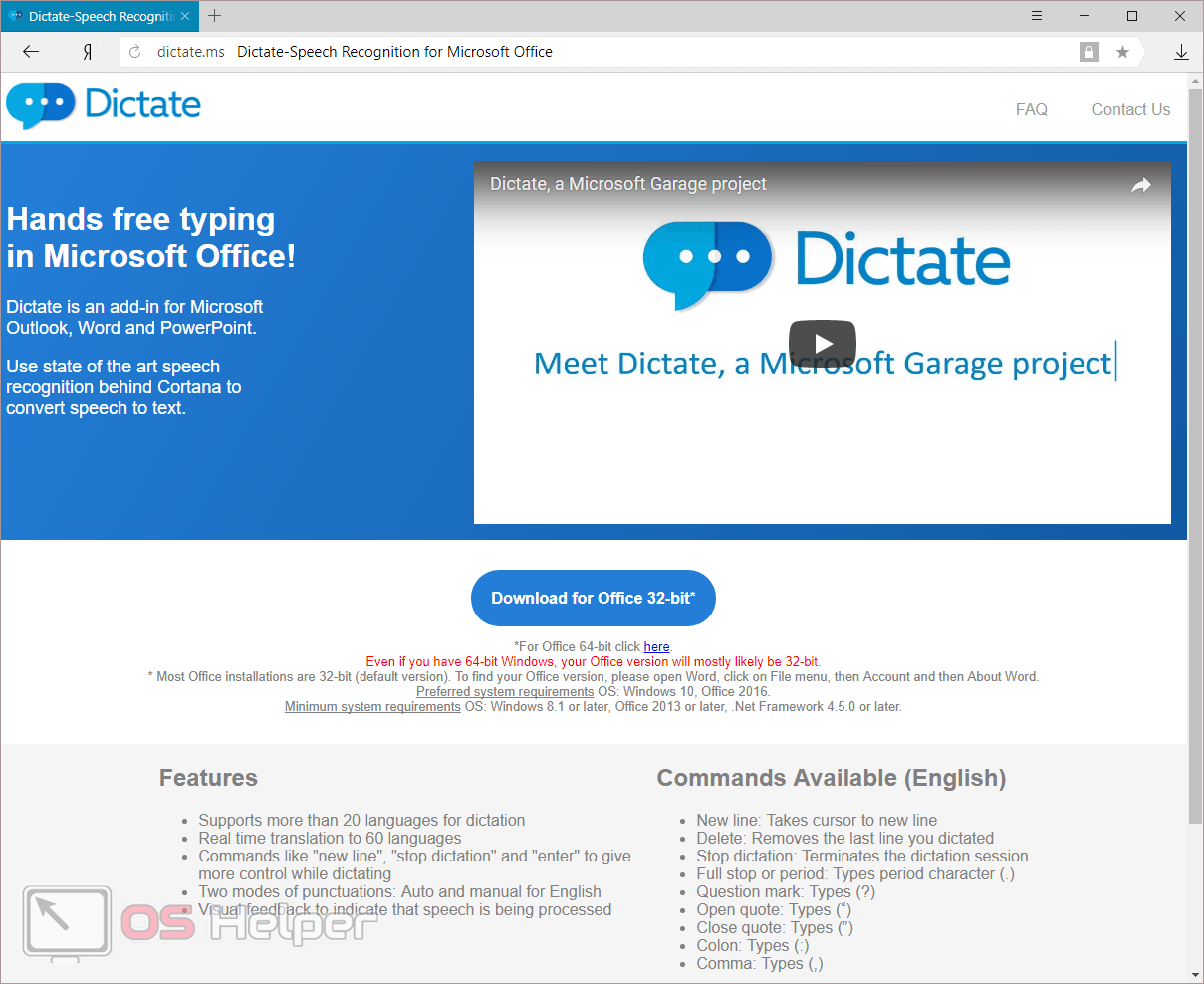
Данное дополнение позволяет вводить текст при помощи голоса более чем на 20 языках. Более того, оно может переводить слова в режиме онлайн на 60 различных языков. И самое главное – этот сервис полностью бесплатный.
Для того чтобы в вашем офисе появилась возможность надиктовки, нужно выполнить следующие шаги.
- Откройте официальную страницу разработчиков. Нажмите на ссылку «Download for Office 32-bit» или на «For Office 64-bit click here».
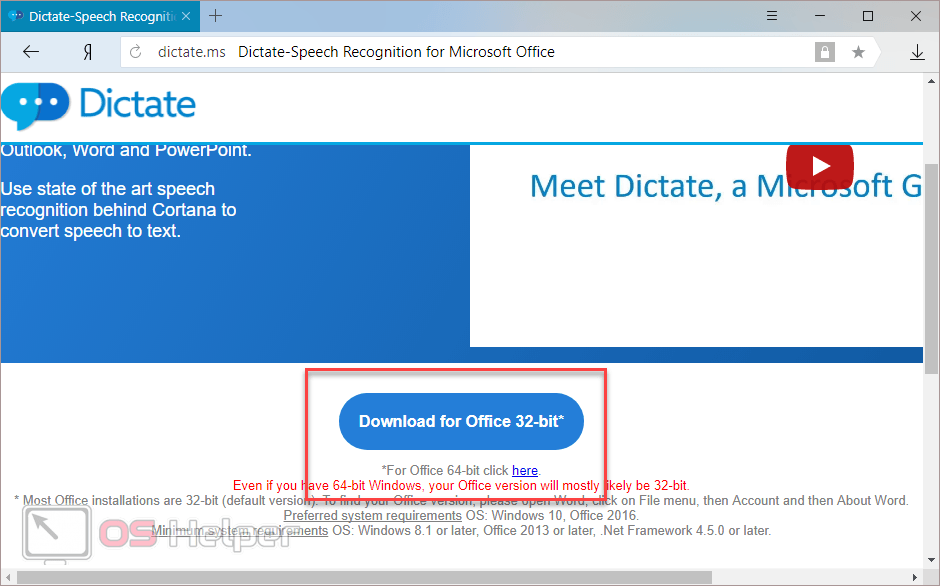
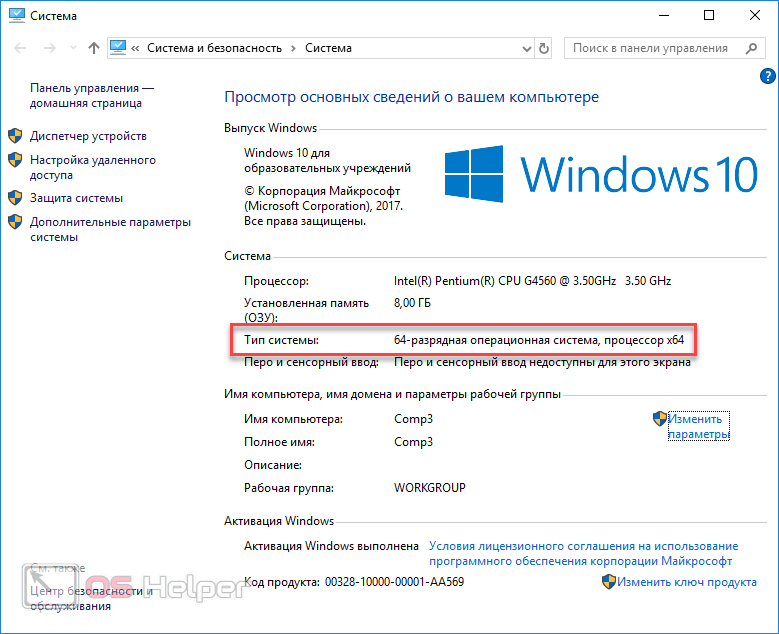
Для того чтобы определить разрядность своей системы и скачать правильную версию программы, нажмите на горячие клавиши Win + Pause/Break .
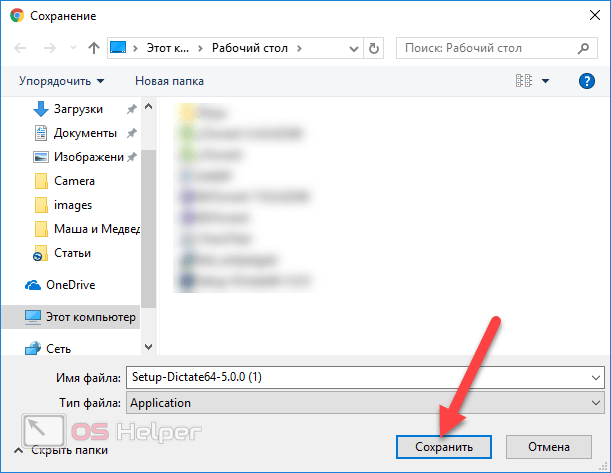
- Нажмите на кнопку «Сохранить».
- Запустите скачанный файл.
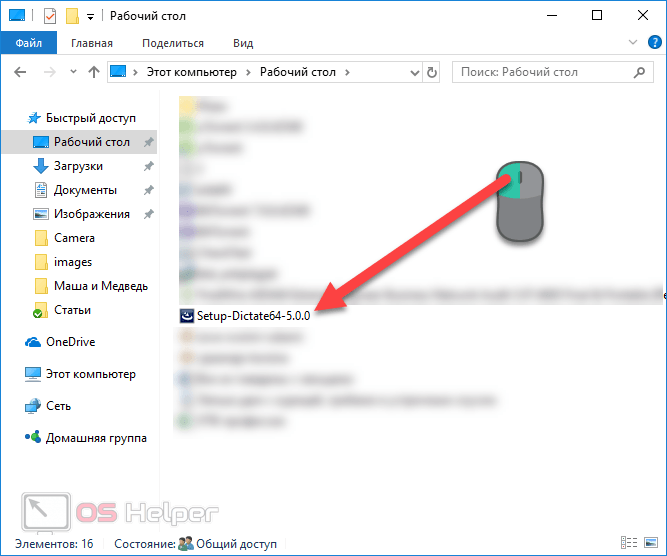
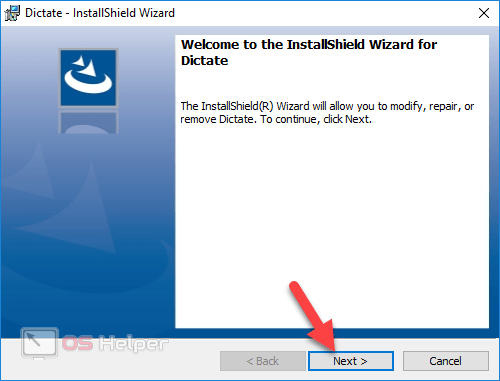
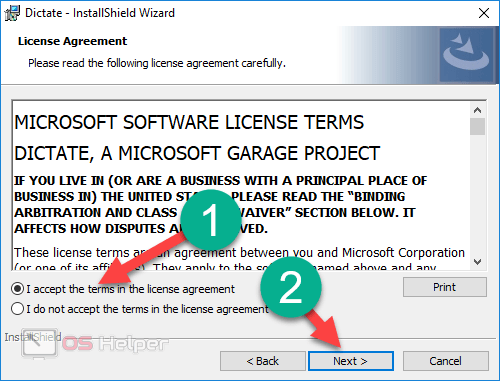
- Соглашаемся с лицензионным соглашением и кликаем на «Next».
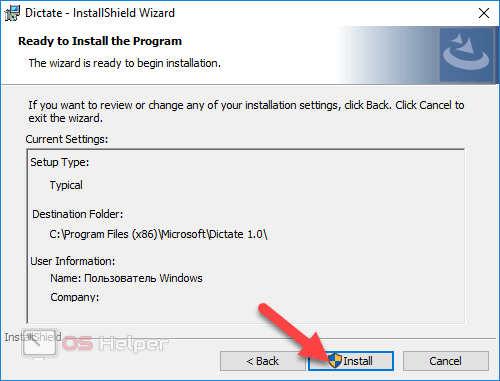
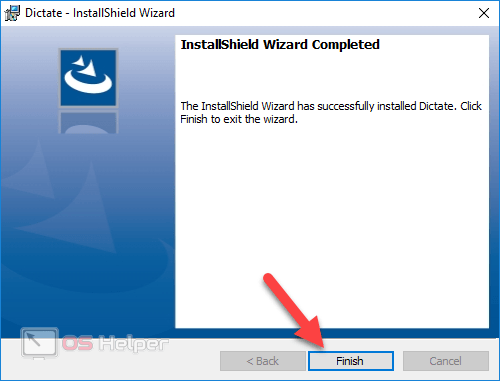
- После небольшого ожидания завершаем установку нажатием на «Finish».
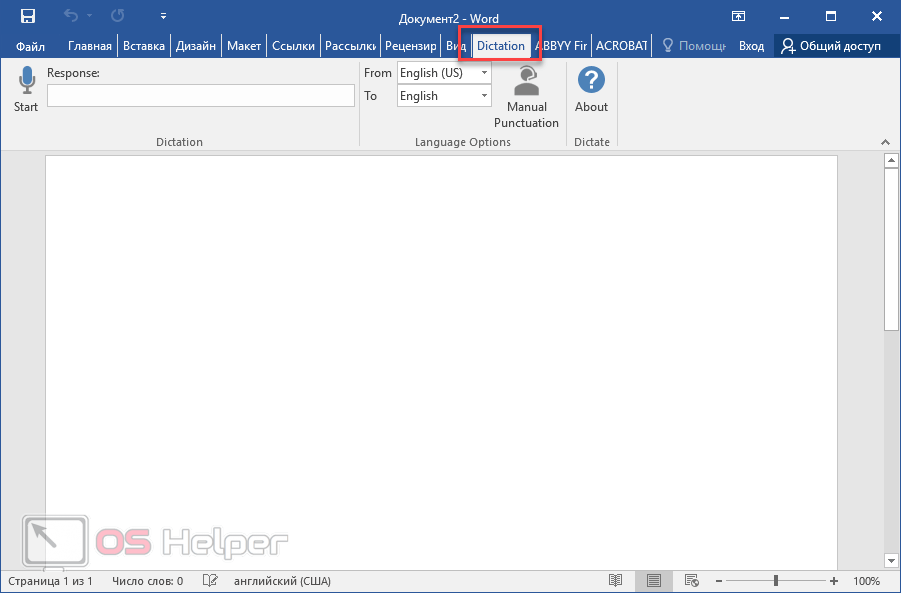
- Запускаем редактор Word и переходим на вкладку «Dictation».
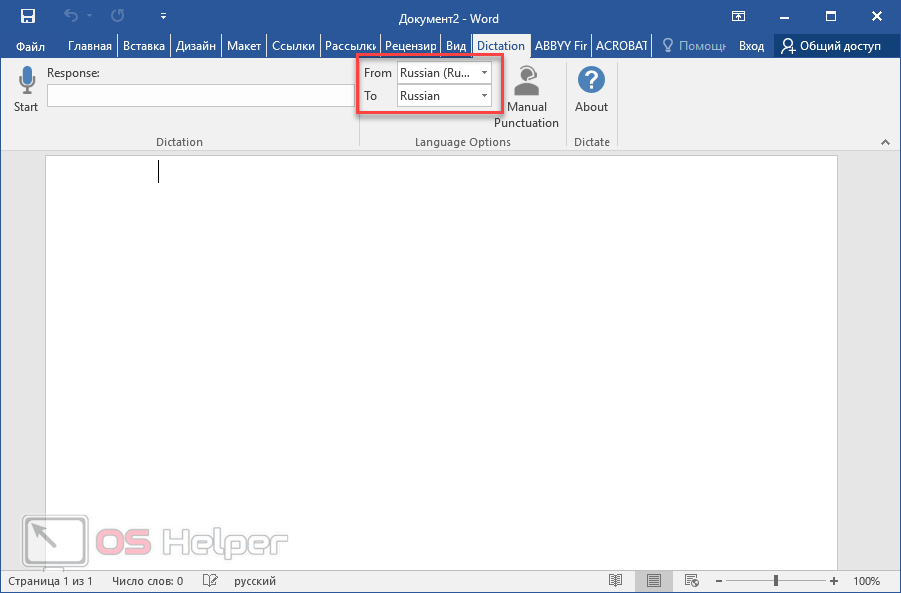
- Если вы не собираетесь переводить текст, то в обоих полях выберите русский язык.
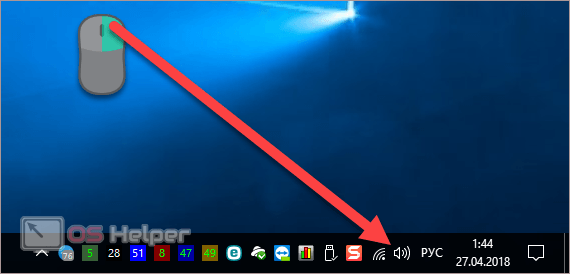
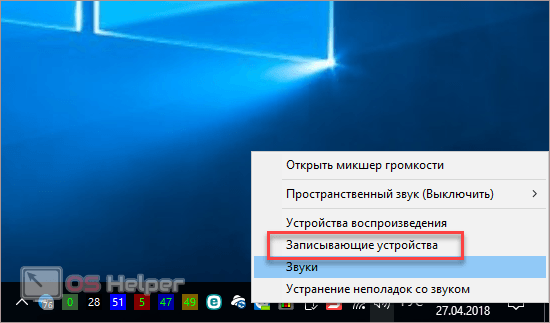
- Убедитесь, что у вас подключен микрофон и он работает. Сделайте правый клик по иконке со звуком.
- Выберите пункт «Записывающие устройства».
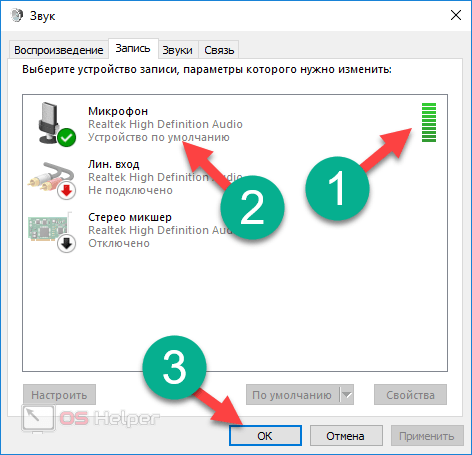
- Скажите что-нибудь в микрофон. При этом шкала должна загореться. Если ничего не происходит – это плохо. Значит, устройство выключено или не работает.
- Убедитесь, что именно этот микрофон указан по умолчанию. В противном случае набор текста будет невозможен.
Задать устройство по умолчанию можно при помощи контекстного меню (нужно сделать правый клик по выбранному пункту).
- Если всё хорошо, то нажмите на кнопку «OK».
- Возвращаемся в редактор «Ворд». Для того чтобы начать набирать текст при помощи голосовых команд, нужно всего лишь кликнуть на иконку «Start».
- Попробуем сказать что-нибудь.
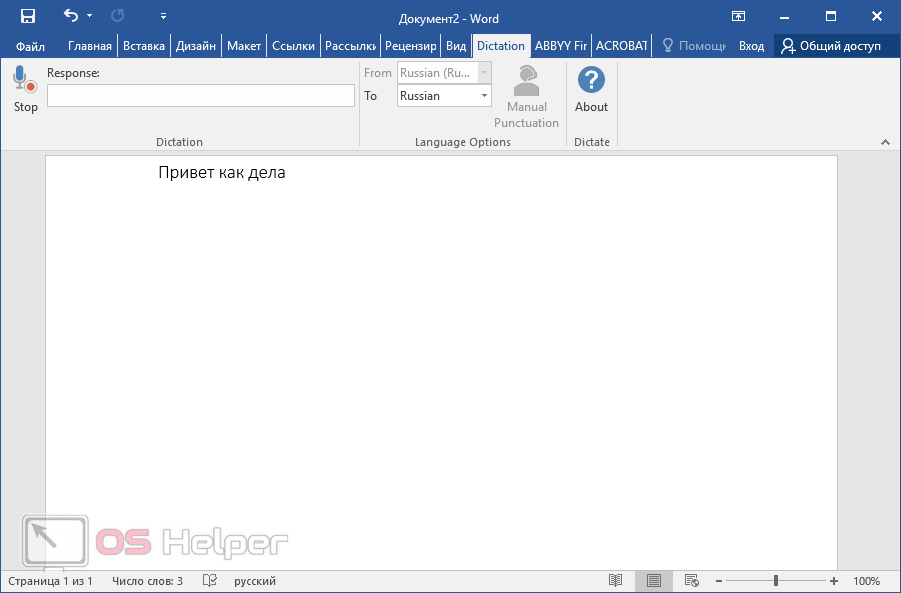
- Всё работает отлично. Согласитесь, так печатать текст намного удобнее и проще. А самое главное – это очень быстро. Для остановки записи нужно нажать на кнопку «Stop».
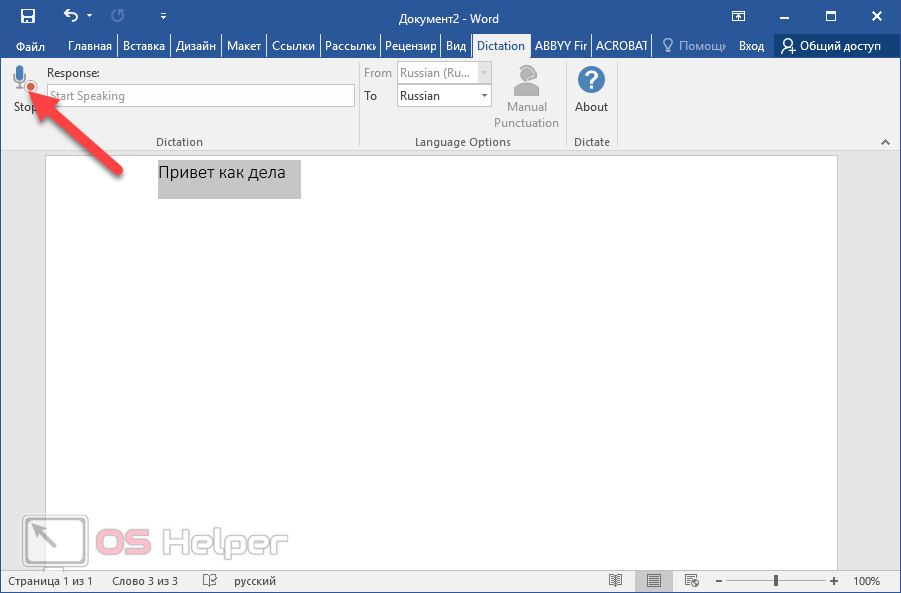
Запись автоматически отключается, если вы длительное время не обращались к вордовскому документу (находились в другом приложении) или молчали.
Системные требования
Для того чтобы использовать это дополнение, и забыть, что такое «писать от руки», необходимо чтобы на компьютере был установлен «Net Framework 4.5» или новее. Если данное ПО у вас отсутствует или вы не можете это определить (факт установки на ПК), нужно будет выполнить следующие действия.
- Перейдите на официальный сайт Microsoft. Как только вы откроете эту страницу, нужно будет нажать на ссылку скачать.
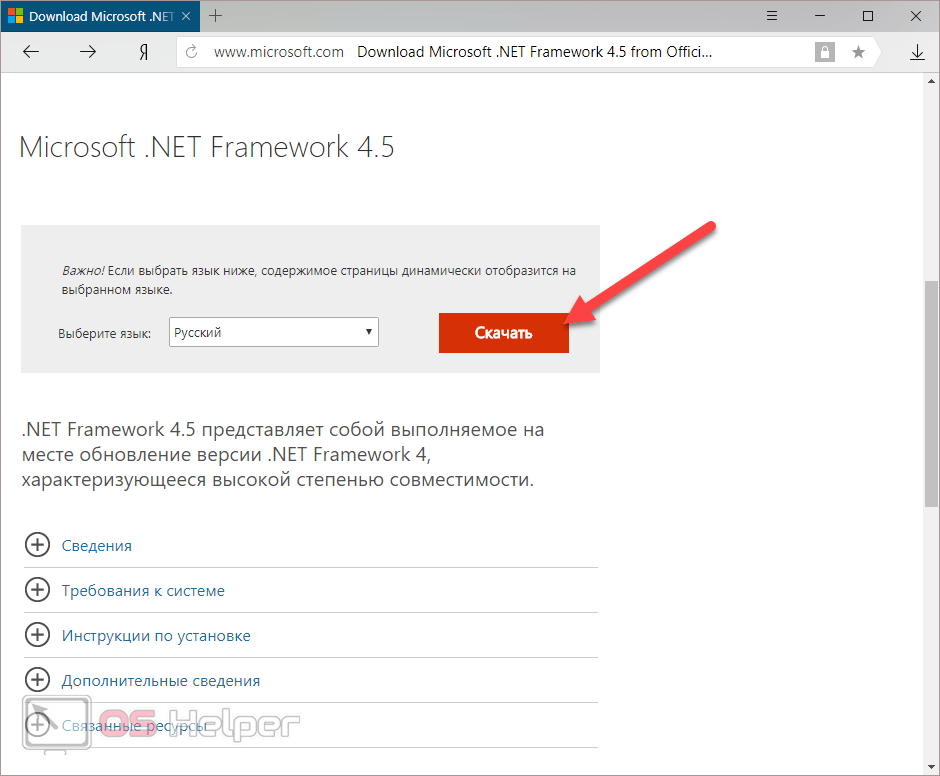
- После этого вам предложат установить дополнительные обновления.
- Нажмите на кнопку «Отказаться».
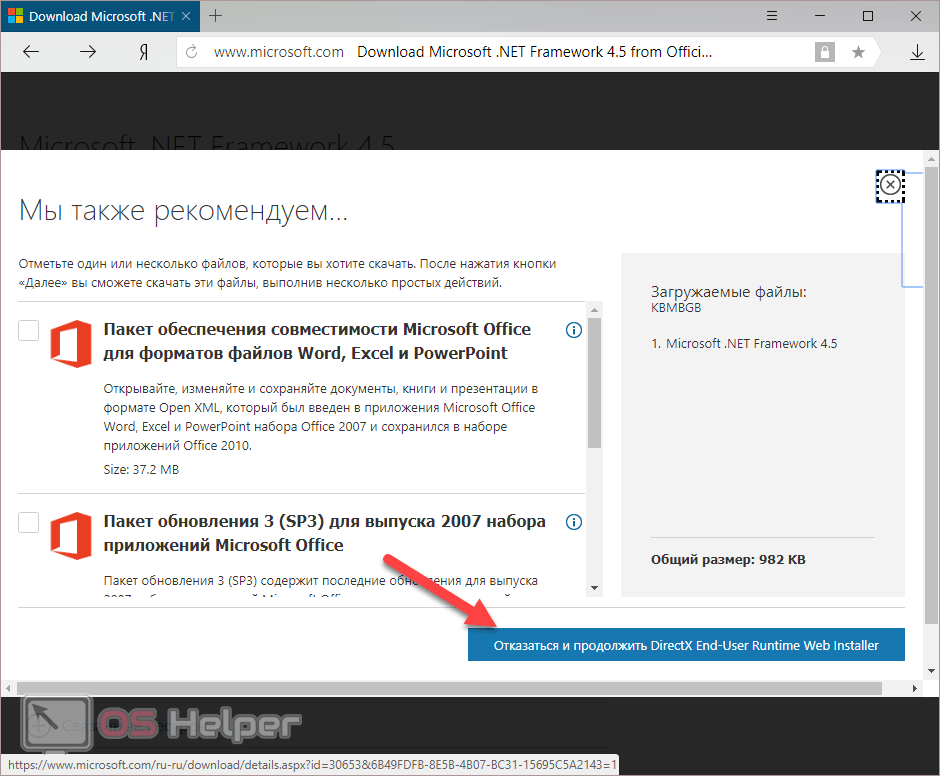
- Запустите скаченный файл.
- Далее возможны два варианта: сообщение о том, что Net Framework уже установлен или стартовая страница установки.
- В данном случае мы видим, что кнопка «Продолжить» не активна. И при этом нам говорят, что на этом компьютере всё в порядке.
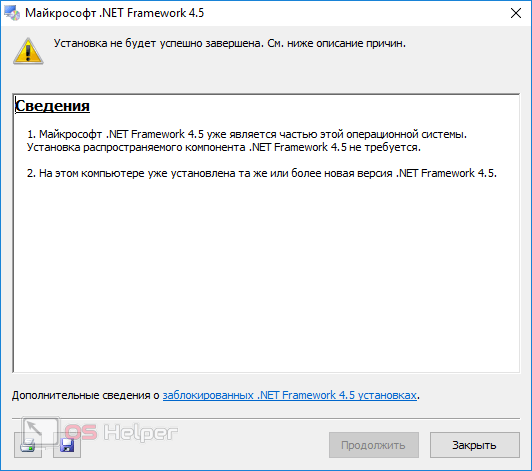
В противном случае нужно будет просто нажать на кнопку «Продолжить» и дождаться окончания процесса установки.
Заключение
В данной статье мы рассказали, как активировать речевой ввод текста в программе Microsoft Word. Если у вас что-то не получилось, возможно, ваша операционная система не соответствует требованиям или же вы неправильно подключили микрофон.
Обратите внимание на то, что качество записи текста зависит от того, насколько четко и внятно вы будете произносить слова.
Видеоинструкция
Если у вас всё равно не получается набрать текст при помощи голосового ввода, попробуйте посмотреть этот видеоролик. Возможно, дополнительные советы вам помогут устранить свои проблемы.
Use Cortana to dictate to Microsoft Office.
| License: | Freeware |
|---|---|
| Operating Systems: | Windows 10, Windows 8 |
| Requirements: | |
| Languages: | English |
| Software Cost: | Free |
| Date Updated: | 22 June 2017 |
|---|---|
| Watchlist: | Add download to my watchlist |
| Downloads To Date: | 2697 |
| Developer: | Microsoft Garage |
| RSS News Feed: | http://feeds.feedburner.com/MicrosoftGarage |
| Twitter Feed: | |
| Facebook: | https://www.facebook.com/Microsoft |
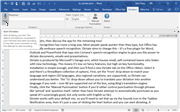
Speech recognition has come a long way. Most people speak quicker than they type, but Office has yet to fully embrace speech recognition. Dictate aims to change this – it’s a free plugin for Word, Outlook and PowerPoint that taps into Cortana’s speech-recognition engine to give you the power to dictate documents, emails and presentations.
Dictate is produced by Microsoft’s Garage arm, which houses small, self-contained teams who tinker with new technology. This means it’s low on fancy features, but high on key functionality.
Installation is simple enough, and then you’ll find a new Dictate tab on the Office ribbon. Select it and there’s a threadbare collection of options. First, set the ‘From’ drop-down to match your language and region (20 languages, plus regional variations, are supported), so Dictate can understand you better. The ‘To’ drop-down allows you to translate your dictation into another language if you wish – over 60 are supported out of the box, using Bing’s translation engine.
Finally, click the ‘Manual Punctuation’ button if you’d rather control punctuation through phrases like ‘period’ and ‘question mark’ rather than have Dictate attempt to automatically punctuate as you speak (it’s surprisingly good, but only works with English so far).
Dictate works with your default mic, so you’ll need to set that up via the Sounds icon in the Taskbar Notification area, then it’s just a case of clicking the Start button and you can start dictating. A response bar in the Dictation tab shows you if your voice is being picked up, and then reasonably quickly words will start to appear.
Dictate works reasonably well, but mistakes will be made, and you’ll need to keep an eye as you go – you can still type while dictating, so it’s up to you if you want to try correcting yourself while you carry on.
This download is for 64-bit versions of Office. Click here to get the 32-bit version (find out which version of Office you’re running from the File ribbon – choose Account and click ‘About Word’).
Dictate does what it says on the tin – and by tapping into Cortana, it’s guaranteed to deliver more than passable results.